Showing posts with label tips. Show all posts

Thursday, November 10, 2011

Reminders: To-Do List Notifications

Here are examples of the ways this program reminds you about a task. One is in the lock screen when you are not using your phone and the other is how it shows up when you are using your phone.

In the lock screen you can choose to have the reminder show up and make a sound. To set up these notifications, click on the settings icon in your menu. Tap the third selection from the top: Notifications. In that screen, scroll through the apps in the list to find the Reminders app. When you select Reminders you will see a screen that looks like this:


If you select the "View in Lock Screen" option like I have, your lock screen will look like this when you have a reminder:


As you can see from the settings, I also have the Reminders program set up to show a banner on the top of the screen if I an currently using my phone. When the banner shows up it will show up just along the top of your screen no matter what program you have open.


It is definitely best to have reminders set up for both when you are using your phone and for when your phone is idle.

To set up a sound to play when those notifications pop up, in the settings screen click Sounds and then adjust the Reminders program to have a sound. There are many alert sounds to choose from. Make sure to pick one that will alert you while as the same time not be so obnoxious that you will get annoyed by it every time a task reminder comes up.

Hope this helps you set up notifications in your phone for your to-do list items. My next post will explain how and why to use GPS location in your reminders. Stick around!

Wednesday, November 9, 2011

Reminders: Setting up Tasks

I will be honest. If there is anything I want to do or have to do in a day it is on my to-do list. I do this so that I do not forget to accomplish the important things, but at the same time I do not forget to enjoy myself. Last post I discussed how I like to view the items on my list, and today I will be going over how I add an item to my list.


To add an item, tap the plus sign in the top right corner of the initital list view or date view screen. In the screen that comes up (shown above) you will be able to give the task a title, set reminders and repeats, choose the list you want the task to be added to, and add priorities and notes. I use all of these fields except for priority. For reminders, I like to be alerted when I need to do the task. You can come up with a great comprehensive list of things you want or need to do, but if you do not add reminders to them, they will sit on the list forever. Even if you actively check your list, it is difficult to remember every time you want to do something.

Know what your schedule is for the day, then look at the tasks you want to do in between the events on your schedule. Make sure to allow traveling time between tasks. For example, if you cannot start your laundry until you get home, estimate the time you will be home based on when you will leave school/work and then set your reminder for that time you expect to be back. I also make sure to leave myself a little time to settle in when I get home before I let my phone start bossing me around :) This might take a little bit of practice, but every time you set another one up you will learn what works best for you. And of course, things always come up, so do not feel bad about changing your reminders after the fact. You cannot anticipate everything that will happen in your day.

In the next two posts I will go over what the notifications look like for the reminders you do set up for your tasks and how to use the GPS locator in your reminders. Hope you are having fun setting up your task list!

Monday, November 7, 2011

Reminders: Using Your iPhone for To-Do Lists


For this week’s posts I had originally planned on talking about the to-do list program (Toodledo) that I have been using on my phone for about a year, but with the release of iOS5 and the preinstalled Reminders program, I have switched to using it and I am very pleased! I will be walking through how I use this program and some of the great notification features. Like all of the to-do list programs I have used, however, this program has definite room for improvement.

The great thing about this program is that the interface is well organized and it is easy to view your tasks, but even better, it is very easy to set reminders for those tasks. I find that if I do not have a reminder set for the time I will need to see the task, I always forget to check the to-do list before it is too late. This means I end up having to postpone the task to another date. And who wants to do tomorrow what you can do today? I would rather knock off most of my to-do list items than have the tasks hanging ominously over my head until the next available time I have to take care of them. That will just mean less time for me to do things I want to do; instead I am stuck doing what I have to do.


When you open the program it automatically opens to List view which just shows you all the tasks you have saved to your lists in the order you added them. You can have multiples lists, and at this point I have a list called Reminders and another one called Homework that I only use to remind myself of items that are class related but not due so that I would not be using my calendar to remind myself of them already.


I do not like to view my tasks in “list view” though, so I immediately select the Date view tab at the top so that the program shows me today’s tasks. From there I can scroll through by day to see what I have to do. Unfortunately, the day is not organized by the times you set to complete the tasks, but at least in a day view it is easier to tell when you planned on doing what.


If you have this program hopefully you will give it a try. I will be posting throughout this week about setting up reminders, setting up your notification settings, and how to use the location feature of the program. Stay tuned!

Friday, November 4, 2011

Setting Up Your Calendar

Today, I will explain how I have set up my calendar in my iPhone 4, but it is also an explanation of how my regular calendar is set up. If you are using a BlackBerry it is very similar to the iPhone, and these suggestions transfer easily. I used to have a BlackBerry, so if you have any specific issues feel free to post a comment below, and I will try to get back to you will a solution.

It is simple to sync your calendars from your computer to your phone. Calendars saved on Outlook or iCal can be set up to sync whenever you connect your phone to your computer. You can also set up your Google Calendar to sync with your phone, and you do not need to attach your phone to your computer to keep that calendar up to date. If you have the latest software update (iOS5), you can also sync your Outlook or iCal calendars without a wire.

The calendar on the iPhone 4 now has a list view (top left) with a list of your calendar items by date, a day view (top right) that shows events on one day, a month view (bottom) that shows the month with the days selectable from there, and now there is a week view if you rotate the phone to landscape view.


The calendar displays each of your calendars together in one, so if you have separate calendars like I do they will appear together. For example, I keep a calendar in Outlook and another on Google. One of them is my regular schedule (classes, homework, appointments, work, etc) and the other is online because it has my charity group's events. As you can see from the week view (shown below), my regular schedule is in green (the colors are customizable) and the volunteer schedule is in purple. Also, you can see how I record when I have assignments due.


As I mentioned in my last post, I do use an assignment program (inClass) to stay on top of assignments, but I also use my regular calendar as well so that on any given day I can see the classes and other appointments I have with any homework or assignments right next to the day and time they are due or should be done by if they are not handed in assignments. I specifically put "DUE" as the first word if it is something to be handed in. I also capitalize tests so that they stand out (shown below). As you can see, the week view is not an appropriate way to view individual calendar items, but I do use it to see the available or "free" time in my schedule.


For more tricks to organizing your time, stick around for next week's posts on setting up to-do lists on your smartphone! If you have any questions, please feel free to leave them as a comment below.

Wednesday, November 2, 2011

Amazing Apps for Increased Productivity, Organization and Fun

Hello again! I apologize for the long hiatus, but I had other priorities (graduate school and job searching) that caused me to put my blog on the back burner. Luckily, I now have a full-time position lined up and can spend more time doing what I love: organizing!

I promised a while back to go through the apps in my (then) new iPhone 4. This is a list of my favorites and why. These apps are probably not all available on BlackBerry or Android. Also, note that the apps are divided into categories, and those are the folders I keep them in on my phone screen. Some of these programs are standard and cannot be removed even if you do not want them. All of these are free downloads unless I have mentioned otherwise. Oh, and yes, the background picture is the newest addition to our family, Bailey, our little Cavalier King Charles Spaniel puppy!


Outside of folders:

Phone - The calling function of the phone has speed dials, recent calls, contacts, keypad and voicemail.
ToodleDo - The best to-do list program I have found so far. Apple just came out with the Reminders app, but it does not have enough organizing options for me to switch to it. ToodleDo is extremely customizable and I can get exactly what I need from it in terms of view, reminders, dates, notes, etc. This program cost $1.99 when my wonderful boyfriend gifted it to me :)
Mail - The email program where you can connect personal and enterprise email accounts to receive and send messages.
Messages - The texting program to send SMS and MMS messages to other cell phone users.
Calendar - The calendar uses your Outlook, iCal, and Google Calendars to show you any and all schedules you have saved on your computer or online. This program is great because you can see all of your appointments in a list or for the day or month, and now if you change the orientation of the phone you can see week view! This addition has made scheduling much easier.
Safari - The internet browser. My mom really appreciates that I have this when she needs a research question answered on the go!

School:

inClass - This is a great app to organize your coursework. I have all of my assignments entered into it because it sends you reminders about upcoming assignments and it also uses a calendar to show you all of your coursework for the semester. You can also save notes to particular classes containing text, voice, photos or other file types. It is also a great way to store syllabus information in an organized fashion because you can add class details for all the classes you add and also add teachers and their details.
Grades 2 - This is a grade calculator that uses your previous GPA data to calculate overall GPA while allowing you to track current grades for your classes in a more detailed format. Add each class and the different syllabus items with their weights along with their due dates. Once you receive a grade for an assignment, add the grade to the program and it tells you how you are doing in the class!

Notes:

Dragon Dictation - This records your voice and converts it to text. I really like to use this when brainstorming so that I can say my thoughts instead of trying to keep up with them by typing. It is not perfect, but it learns as you go.
CamScanner - This allows you to take a picture of a document and reshape it to look as if you scanned it flat (it removes the angle you took the picture). This is handy when you need to copy someone's notes but do not want to make them wait. This way you can just snap a picture, reshape, and hand them back their notebook.
Voice Memos - An audio recorder that can record long segments of audio. Great for lecture classes that do not have many notes written on the board. Also great for recording long meetings that you might need to reference comments from later. Never use recordings of others without their permission though! I only use these for my own reference when I know that I will need to go back over someone's explanation afterwards.

Social:

Facebook - If you use Facebook this is a decent app to stay up to date. Personally I am not crazy about Facebook, but I have some notifications set up to alert me about personal messages and posts to my wall so that I do not miss anyone trying to contact me on Facebook rather than emailing.
Viber - This application allows you to call others who have the program no matter where they are in the world with no international calling charges. This is great for those with friends or family overseas. This program also has text message capabilities.
Skype - This app allows you to use the video chat program through your phone. This means that you can use your phone to video chat with anyone using Skype no matter if they are on their phone or their computer.
HeyTell - This app allows you to send voice messages easily to others who use the program.
WhatsApp - This program is another useful tool for travelers because it allows you to send text, photo and video messages free anywhere in the world using an internet connection. When I bought this program to use with my boyfriend when he was overseas in Hong Kong it cost me $1.99. Definitely worth the price.

Location:

Google Maps - This app allows you to use your current GPS location to search your area map or get directions. I cannot tell you how many times I use this program in a week, but it has definitely saved me on numerous occasions. Cannot recommend this enough! If you are using it for directions, you have the option of getting directions by car, public transportation, or for walking. It also uses the addresses you have saved to your contacts so you do not have to type them out every time.
Tip Calculator - This tip calculator allowed you to adjust the tip percentage and number of people splitting the bill easily. If you eat out in groups often like we do, I would recommend this app.
Light - This app uses the flash in the iPhone 4 camera as a flashlight. This has been very useful on the occasions where I have found myself in the dark! It also will signal SOS if you are having an emergency.

Entertainment:

Netflix - If you have Netflix, you can watch the online streaming movies on your phone! This is a great program when you are stuck somewhere waiting.
Kindle - Kindle allows you to read books on your phone. There are many free books and they download straight to your phone.
YouTube - Just like Netflix, YouTube videos are a great way to pass the time when you are stuck waiting around.
Pandora - Pandora is a music service that uses songs or artists you like to play channels of music related to those songs or artists. I use this more than the iPod function of my phone.
SoundHound - This amazing app allows you to find song information by either allowing the program to listen to the actual track or you can even sing the song to find it!

Games:

Monopoly - If you like Monopoly, this is a very cute, interactive version. I believe it cost me $0.99.
Tiny Tower - This game is surprisingly addictive. I currently have 45 floors and 80 bitizens. Check out the Bitbook if you download this app: it is adorable.
Temple Run - This running game has fun goals, achievements and skills to unlock.
Sudoku - A great game to keep your mind sharp :)
Angry Birds - This was also gifted to me from my boyfriend. Very addictive. You throw birds towards fortresses built by pigs that stole eggs from the birds. Costs around $0.99.
RacePenguin - Very silly game where you guide a penguin over slopes to avoid getting eaten by a polar bear.
Family Feud - Play the famous TV game show on your phone! Unfortunately, it is very difficult to play without connecting it to your Facebook account.
Scrabble Free - Play Scrabble against a friend or random opponent.

Tracking:

Closet - I have my entire wardrobe saved in this app. It allows you to save each item into a category and add them to outfits also separated into categories. Very customizable and comes with a calendar function that allows you to save outfits to specific dates. Also has a packing list function.
YOGA Free - This app has a prepared yoga program with a picture of each move as you go with calming music playing along. You can also design your own program using the catalog of poses.
Passwords - This app saves your passwords in one place so that you do not need to have them lying around on a piece of paper. Allows you to save everything organized alphabetically so you will never forget them. Saves so much time when trying to remember your different logins. It also will generate random passwords for you.

Well that is the list! I know it is rather extensive, but they are the ones I recommend to my friends. Hope you enjoy them too.

Monday, October 11, 2010

How to Get the Most Out of Your BlackBerry/iPhone/Smartphone

This week is How to Get the Most Out of Your Blackberry/iPhone/Smartphone Week!
Your smartphone can be an amazing productivity tool, or it can be the source of your demise. If you treat your phone like a PS3 by constantly playing games, or if you are always browsing the web, you are wasting the potential of your very clever piece of technology. Smartphones are capable of email, messaging, calendars, tasks lists, word processing, spreadsheets, and many other useful functions. It is your mini computer.

So what did you do when you first got your phone out of the box? You set it up with your voicemail message, added a few applications, and generally fooled around with it trying out all the cool features. My thought is that to fully benefit from your smartphone, you need to devote a solid chunk of time to sit down with it and learn all of its real functions.

If you do not take the time to set up all of the available settings, you run the risk of your phone not alerting you when you need it to, alerting you at the worst possible moment, loosing/deleting your data, or a variety of other very bad situations. Taking the time lets you tailor your customizable device to your particular needs. You are loosing on your investment in the phone if you do not take advantage of this.

Also, most smartphones have forums where people answer each other's questions about the phones. If there is something you think your phone should be capable of doing but you can't figure out how, just type a few keywords into your search engine with the name of your phone and the issue and often times there will be a solution. If you have the idea, don't let it just be "wishful thinking" and take a look.

I was a BlackBerry user before today when I got my new iPhone, so this week I will comment of the capabilities of both. Tomorrow I will explain how I organized the applications on my Blackberry and how I just organized my iPhone apps. Over this week I will also share tips on using your smartphone to-do list and calendar, and I will go over my favorite apps so far. As always, please feel free to comment with any questions or comments! If you are an iPhone user, please leave a comment about your favorite apps that you think I should try.

Friday, October 8, 2010

Using Outlook to Manage Your To-Do List

To-Do Lists week wraps up today with a few tips on using Microsoft Outlook to help you prioritize, set due dates and reminders, and stay on top of your game. I use this program at home by choice to organize my personal life. (I organize my homework using a different system that I will explain during the upcoming Study Habits week.) Outlook is also standard at my office. Try these tricks at work to surprise your coworkers with your organizational savvy. Use them at home to allow you to ditch the messy pen and paper and allow yourself to sync your tasks between your computer and your smartphone.

Day one of this week was about writing down the tasks that you want/need to accomplish, day two was about breaking down larger projects into smaller tasks, and days three and four were about prioritizing and re-prioritizing your list. Today is all about giving you a system to handle all of those in a more efficient and effective way.

For those of you who are not big fans of Microsoft, I apologise for generalizing, but this happens to be the program I use at the moment. Most task list programs work for this purpose. If you happen to use a program you prefer to Outlook, please comment below! According to my mother, RememberTheMilk.com is an excellent way to organize your tasks and access them from anywhere over the internet. I think I will be giving it a try when I get my iPhone next week since there is an app for it.

So back to the topic of organizing your tasks.

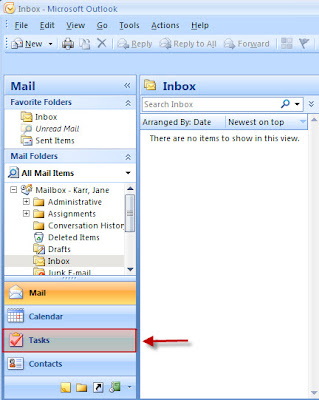
When you open Outlook you will see on the left side bar there are sections for Mail, Calendar, Contacts, and Tasks. You may have other options depending on how you have set up your settings. When I click on Tasks, my tasks appear in "To-Do list" view. This filters your tasks chronologically by due date with today's tasks on top and future tasks below. This is my favorite way to prioritize my tasks. I give tasks dates and they organize into the order I wish to tackle them in. Even for tasks that do not have specific due dates, remember my suggestion that you assign them a date so that they do not get lost at the bottom of your list. If a task gets close to its due date and you have more important things to do, it is very easy to open that task and push the due date off for when you have more time. Note: Unfortuantely, if you do not set a due date for a task, it will sit at the top of your to-do list above today's tasks. This does not seem to have a remedy, so make sure you set a date for all of your tasks even if you have to use dates that are far out.

Every time your team/department/organization comes up with a goal, throw it on your to-do list. Every little project you get assigned to do, throw it on your to-do list. In doing this you will always know what you have on your plate, or if you get a spare moment you can take the time to try to work towards long-term goals. I also use this as a way to track the history of my time spent at work. If I set a start date on a task and mark the day I complete the task, I can switch the view on my Outlook Tasks to "Timeline" view and it shows me what I was working on in a given period of time. I am able to communicate to my coworkers at any given time if I have time to take on more projects, and I am able to update them on the status of the project I am working on.

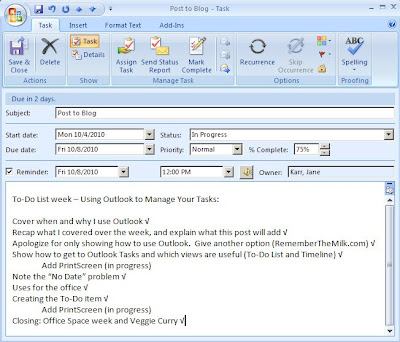
When you create a new task you give it a subject. Try not to get too detailed or your list will look scary. Instead, keep the subject simple and leave the details of the assignment in the text box. You can then set the start date, due date, reminder, and a priority. I actually never use the priority function because I use due dates to signify this instead. The reminder function can be very useful if someone assigns you something you are putting off until later. Set the reminder for the next time you want to pick up the project. As you work through a project you can update the status of the project and the percentage you have completed. Then when a coworker asks you how far you are on a project you can easily tell, and it also is a great way to make yourself feel like you are adding value when you are at work.

I plan to do a whole week on useful office tools that can help you make your day more efficient and productive without sacrificing quality or adding tons of extra work. Keep a look out for those tips in a few weeks. As always, please feel free to comment below with your thoughts or any questions, and check back tomorrow for a delicious vegetarian curry recipe!

Thursday, October 7, 2010

How to Re-Prioritize When Life Surprises You

This is another continuation of To-Do Lists week! For advice about creating your to-do list, breaking down larger goals into tasks, and prioritizing see the earlier posts from this week.

I always assume that I can get all of the top items on my to-do list done in a day. I am usually kidding myself. The reality of it is that new things come up, and you are forced to push back the items you swore would get done today. Email is usually my source of this. The top things on my to-do list for the day might include: write an essay, laundry, pack overnight bag, groceries, a homework assignment (when I am in classes), post to my blog, etc. The problem is that after I have decided what tasks will be my priorities for the day, an email pops up on my BlackBerry saying, "FYI, please distribute". I say to myself, "Oh, this will be quick" and quickly forward the message after a bit of editing. Once I am done I try to redirect my attention to the task I was working on. A few minutes later I get another email, "Please read and give your opinion". I just love giving opinions, so I take several minutes to draft my response. After sending off my reply, I again redirect my attention to the task at hand.

Email is a major distraction that can crush your productivity. Phones do the same. So what can we do when we are expected to keep up with our emails and answer our phone(s), but we still want to accomplish tasks on our list? My method is to decide the priority of the emails and calls in comparison to my tasks.

For instance, the emails I mentioned above are related to the charity group that I co-chair. If I stop to think about it, those emails can just as easily be sent later that day. I star them and leave them in my inbox to get back to them that night. I never leave more than seven emails at a time in my inbox, so if I am creeping towards that number I may take a few minutes to answer them all at once. This technique is much less distracting that answering them each time I hear a ding.

The same thing goes for my phone. If I am unable to screen my calls, and someone gets me on the line when I am in the middle of something, I decide whether the thing they need from me is more important than what I am working on now. If it is more important, I deal with it on the spot. If it is something that can wait I say, "I would love to help with that, but I am tied up at the moment. Can I call you back at six to discuss this?" When I get off the phone, I immediately write "Call [person's name]" on my to-do list and set a reminder for 6 to call them back. Try not to say you will call back "later" because that sounds very noncommittal, and you leave the other person waiting for your call which is not very respectful of their time. Setting a time to call them back also makes you more likely to call back because you cannot procrastinate doing it. Now it is a date. You do not show up at the restaurant a day late for your date, do you? Well, maybe you do, but neither of you end up happy for it. Setting a time to get back to people also reduces the potential for never-ending phone tag.

I am currently trying to teach my coworker to email me instead of calling. Unfortunately for me, he is the type to call every hour with something "urgent". And by "urgent" I mean "could be relevant in the next week". Not something I should drop everything for this instant. Also, he doesn't understand when he has made his point and the phone call can end. He can tie up ten minutes explaining something that could be a few sentences in an email. After the phone call is done I have to revert back to what it was I working on when he called, and it takes a few minutes to get back into a flow. I can let myself get interrupted for an hour a day for these kinds of interruptions, or I can screen his calls. I have this theory that you can train a coworker to email you instead of calling if you are immediately responsive to email, but never pick up your phone. You can have an email conversation in less time because you can skim over the filler information and get to the real meat of their issue faster than letting them babble. I will let you all know if this plan pans out. Also, I will have a whole week focused on communication, so keep an eye out!

It can still be hard to redirect your attention back to your original tasks when you mentally evaluate the importance of your interruptions. Conversely, if you take the time to give your full attention to all of your emails and phone calls when they happen, you will never get back to your tasks at all. Prioritizing the importance of your daily interruptions will allow you to use your time better to keep up with the things that are the most important to you.

So remember, ask yourself what things are more important to you to filter your disruptions. As always, please feel free to leave a comment with your thoughts or questions, and stay tuned for tomorrow's post on great ways to use Outlook Tasks to help you prioritize, set due dates and reminders, and stay on top of your game.

Wednesday, October 6, 2010

How to Prioritize Your To-Do List

This is post number three of To-Do Lists week! Check out earlier posts from this week on creating your to-do list and breaking down larger goals into tasks.

My to-do list sometimes seems endless. I put every little thing that comes to mind that I think I might want to do on the list. Maybe I need to schedule an appointment, but I remember that on a Sunday when they are closed. I set myself a reminder to call them the next day. If your mind runs like mine, you can get a lot of things onto your list in a day. With all of these small to-do’s ending up on the list, you need to organize your list to keep from total list system failure and causing yourself undue stress.

Evaluate what you need to do (or think you need to do) in comparison to your goals.

If you could only get one thing done from the list today which task would it be? Put that task at the top of your priority list. With the remaining items, follow the same process: if I could only do one of these, which would I do? Going through this process for the whole list organizes all of your items by priority. Now all you have to do is work down that list. Be mindful of items that have very specific due dates. Some of the items on my list (no matter how much I value them) have to take a sideline to the tasks with due dates that have to be completed sooner. These priority items need to be higher up on the list in order for me to get to them in time. Check out Friday's post for more ideas about how to never miss a due date.

Try to take your to-do list and prioritize the items, and don't forget to read tomorrow's post on re-prioritizing your to-do list when life surprises you!

Tuesday, October 5, 2010

Breaking Down Your Bigger Tasks

This is the second post of To-Do Lists week!

Even when you think a task that pops into your head is bigger than just one action, put it on your list. Sometimes you do not know the individual steps to get to a bigger goal. One of mine recently that I threw on my list was "Apply to graduate school". I threw it on as something that was not due in the short term, but that I still wanted to have it on my back-burner. When I had more time, I went back and replaced the task with individual tasks of the steps it takes to accomplish the bigger task. Now my to-do list says, "Fill out graduate school application", "Write essay 1 for graduate school application", "Write essay 2 for graduate school application", "Write essay 3 for graduate school application", "Get official transcript for graduate school application", "Ask for recommendations from two professors for graduate school application", and finally, "Graduate school application Due". By breaking it out into steps all the way through the due date of the application I was able to set dates to do each part. That way the task does not sit on the bottom of my to-do list until it is too late. The idea is to keep your very important tasks as underwhelming as possible.

I have even been doing this for my blog posts. For instance, I wanted to talk about how I make my to-do lists. Instead of writing one massive post that covers all the steps and tricks to making a working, manageable to-do list, I have broken it down into individual posts for each one. Not only is it much less overwhelming, but I can be done with each of my posts quicker. It is much more satisfying to have a smaller post done than no posts at all! The small wins strategy can also be very motivating. I find I am much more likely to take time out of my day for a smaller project than I would for a looming larger project. I will shy away from those every time.

So remember, keep your bigger goals on your lists until you have time to break them down into realistic steps. Set dates for the smaller tasks to work up to accomplishing that one larger goal. Use a small wins strategy to keep motivated by making the smaller tasks small enough to finish in a short amount of time. And of course give yourself a huge pat on the back every time you can cross off one of your tasks. Be proud of what you have been able to accomplish. Some people never reach their goals, so you should feel amazing about yourself when you do.

Please leave a comment if you try this for a particular project. I would love to hear about any success stories! Also, if you have a larger goal and you simply cannot come up with individual steps to reach it, comment on this post and I will gladly try and assist you.

Stay tuned for tomorrow's post focusing on the how to’s of prioritizing your to-do list!

Monday, October 4, 2010

Creating Your To-Do List

This week I will be focusing on To-Do lists! I will post how to’s on creating your to-do list, breaking down bigger tasks to make them more manageable, prioritizing your tasks, and re-prioritizing when life surprises you.

I love lists. I love making lists of things to do, things to pack, RSVP lists, groceries, everything. It is what makes me tick. I know that I am an exception, not the rule. Most people do not enjoy having to come up with lists. The truth is: lists can save you from a lot of future pain and embarrassment. Are you forgetful? I know I am. Ever had something really important to do but you completely forgot about it? Keeping all of your thoughts on paper (or in my case, a smartphone) will save you from banging your head again a wall after forgetting that something. All it takes is carrying a small pad of paper or smartphone with you for all of those reminders or potential to-do's that pop into your head throughout the day.

One trick: also take that pad or phone to bed! Leave it on the nightstand before you go to sleep. When you are falling asleep and think about the one thing that you really want to get done the next day, roll over and quickly write it down before you fall asleep and forget. I forgot to do this recently and instead of remembering to bring more oatmeal into work the next day, I forgot it and went without breakfast. Not fun. I don't know about you, but I am pretty grumpy when I am not fed.

So remember to write down all of your thoughts to create your to-do list, and stay tuned for tomorrow's post on breaking down the bigger tasks on your to-do list! Later we will go over prioritizing all of those items that you have written on your to-do list. As always, please feel free to leave a comment with your thoughts or any questions you might have!

Thursday, September 30, 2010

How to Be Automatically Organized

This is a continuation of Top Tips to Start Getting Organized Week! More of my favorite tips and tricks are still to come.

Tip Number Three:

Leave Things Where You Used Them

Your space should be working for you; you should not be a slave to it. My room works for me. Everything I need is in a useful spot, and I only have what I actually use. Also, when things are in logical places, it is much easier to maintain. My favorite, tried-and-true method is to keep my items where I use them. If you do this, you will avoid being tempted to leave something in the wrong place after you use it when you are too busy or feeling lazy.

For example, my hair care products (my gels and sprays, blow dryer and straightener, brushes and combs) are all right in front of my mirror in a small narrow bookcase where I do my hair. Even when I am in a hurry, everything ends up where it should be because I automatically leave it there. Some days I might toss the items there instead of neatly placing them in a line with all of the labels facing forward (yes, I usually do this), however, since they all end up in the right designated space, they are very easy to tidy up at a later, less busy time.

Stay tuned for more of this week's tips and tricks!

Wednesday, September 29, 2010

How to Deal With Too Much Stuff

This is another trick in the spirit of my Top Tips to Start Getting Organized week! I will continue to share my favorite tips and tricks in the next few posts.

Tip Number Two:

Reduce Your Belongings by Using Designated Spaces

You cannot get organized if there is too much stuff for your space. If you are a pack-rat, or live with one, no matter how organized you try to be, the stuff will just fight back. One trick I like to use is designating specific places in your house or apartment for specific kinds of things. Limit yourself (and others that live with you) to only having what can fit in the spot you designate.

For instance, you decide that a particular bookcase will be the designated place for books. Over time (maybe not that long), the bookcase will be filled. Now someone in your house or apartment wants to add something to the collection. Something else from the bookshelf will have to go first. If you stick to that system, you will avoid letting anyone fall back into having more than you have space for. This trick works for closets, bookshelves, drawers, coffee/end tables, and any other place you would be able to leave your belongings. This does not include the floor because you should be moving away from storing anything there that is not furniture or a very large item that needs to stand alone (i.e. and exercise bike, decorative plant, etc).

This trick also helps save you money. You might want something when you are in a store, but then you will have to ask yourself "Do I need this? Do I want to give up something I already own just to have it?" You might decide that the new thing in just not worth parting with your existing belongings. And remember, your possessions may bring back memories, but they do not define you. Sometimes you may need that new thing, and you will have to let go of whatever item it is that you conviced yourself you cannot do without. Let go. Set your belongings free. Let them make some new owner just as happy as they made you.

Stay tuned for the rest of this week's Top Tips!

Friday, September 3, 2010

SnagIt!

I just recently discovered a marvelous piece of software called SnagIt. It is a tool to record images and video of your computer screen. SnagIt is extremely useful for all things you would use Print Screen for, as well as making video tutorials of anything you do on your computer.

For example:
My department at work was having trouble with having too many copies of the same files in our shared network drive from people sending files as attachments. My solution? Send the location of the file as a link. The issue? Most of my department did not know how to create a link from a folder address.

Instead of walking around to everyone's desk and showing them, only to have them forget how the next day, I created a video tutorial. And how did I shared it with the group? As a link in an email.

This is a tutorial I created with SnagIt (Note: this is not the exact tutorial I gave my coworkers because I had specified real files from a real shared drive. This shows a file from my hard drive. If you try to use links to send files from drives that are not shared, like I have done here linking to my hard drive, the recipient will not be able to open it. I will show how linking to your hard drive files can be very useful in a later post.)

I hope you enjoyed this demonstration, and I hope you are now just as excited as I am about this amazing, useful product. Stay tuned for more posts, and feel free to post questions about SnagIt or any other organization/productivity topic. Thanks for watching.

Monday, August 30, 2010

The Plan of Attack

As promised, here is how I created my Plan of Attack in preparation for our yard sale and total house overhaul.

This document lists the rooms in the house that we wanted to work on and what specifically can/could/will/should be improved. Each task is a bullet point so that they can easily be done one by one. I find this method to be less overwhelming than just saying, "I want to organize everything". My plan is to organize everything, but you can make it easier on yourself by doing it in steps. And who doesn't love to check/cross/obliterate things off a to-do list? Oh, maybe that's just me.

Okay. So you want to clean your house. Do these next steps for each room to assess what you would like to do and to start developing a Plan of Attack.

  1. Stand in the middle of your space (if you can) and look around. Is there an area of the room that sticks out to you? Is one corner the "junk" corner? Is there a closet bursting with stuff? Or is the whole room just covered in a blanket of nonsense? Make a short list of the areas in the room you notice could use improvement (for example: bookshelf, TV table, desk, coffee table, etc).
  2. Now close your eyes, or if you have space, sit cross-legged on the floor, close your eyes, and breathe deeply. Visualize the space you would like to have. If you are anything like me, there is a lot less stuff in this visualized space. Now, for each of the areas you wrote down in step 1, go through and write next to each one at least one possible remedy. When I look at a bookcase, for example, I look to see if there are knickknacks in front of the books blocking the way, if there are books crammed into the shelves, or if the shelves just look too "busy". Then next to "Bookshelf" I write "Remove knickknacks from bookshelf. Weed collection to make a pile of books to donate." I make similar notes next to other areas such as the chifferobe in my bedroom: "Remove clothes unworn in past two year to donate. Donate old DVDs. Remove old body care products that I will not use." For help with a specific area of a room, comment on this post, and I will make sure to get back to you (except if that area is your closet as I will cover that in my upcoming post about closet overhaul).
  3. With your list of areas to work on complete, make those suggestions into bullets. I typed all of mine into a word processor so that all of the formatting would be done for me. This also made it easier to drag different bullet points around and to add things that popped into my head later without ending up with a list on paper that looks like a first grader's homework.
  4. Next, make yourself a realistic schedule. When I say realistic, I mean do not plan to check ten items off your list in a day. Make a more realistic goal of tackling one or two of them each day instead, and reward yourself when you stick to your schedule. For example, I planned to reorganize the bathroom shelves and medicine cabinet one day, weed through my older clothes the next day, and over the weekend tackle the basement or attic (depended on the heat) with my dad. This way, I never got discouraged or got the feeling like I used to freshman year of high school when I hadn't handed in my homework on time. It is not a fun feeling, so don't do that to yourself. And remember that your plans for the day (or week) can change in a second, so do not feel that you have failed if one day or so you have to put off one of your planned items. Just make sure you don't fall off the band wagon. Move your schedule back one or so day and keep working off that list.
  5. In terms of rewards, I just love checking things off lists, but I know that isn't for everyone. Give yourself a pat on the back and remind yourself you did a great job that day. Have a little treat. But please, for the sake of progress, do not go and buy yourself more stuff as a reward. You will regret it later.

I hope this strategy helps you start assessing your organizational needs and motivates you to start weeding out your clutter. Remember, assessing your space, making a list, and setting a realistic schedule can be a more productive (and much less painful) way to start on your journey to organized, less stressful living.

Stay tuned for more posts (on a more regular basis), and feel free to post your comments and questions. I would love to solve your organizing issues.

Wednesday, August 25, 2010

The Yard Sale

It has been too long since my last post! I have been busy doing what I love: Organizing!


My mom and I decided it was time to do a total overhaul on my parent's house. Our house is, in short, disorganized. I am very excited to see what we can do with it! In preparation for this organizing extravaganza, I developed what I call The Plan of Attack. I will detail how I created this plan in a later post.

We set a date for the yard sale and had the goal of finishing the preparation for it in a week. Kids, do not try this at home :P Just kidding. I encourage everyone and anyone to take the first steps towards living a more organized, less stressful life. I do suggest, however, giving yourself more than one week to accomplish the task. Do set a date though, or else it will never get checked off of your metaphorical list.

The preparation for the yard sale included gathering all of the belongings we planned to sell in one location which in our case was our living room. You do not want to get to the day of the sale and have everything in all corners of the house. Plus, if you haven't taken the stuff to sell from the places they used to be in your house, you will not be able to tell whether or not you made a dent in the clutter. Yes, the living room was not the prettiest sight for one week, but it was all over quickly and was so relieving when everything left the house.

One issue was that Mom wanted to see the house less cluttered (making cleaning easier), but Dad did not want to get rid of anything. But let me tell you, people can change. You would not believe how receptive Dad became to the idea of letting go of some of our possessions. It was just so great when Dad beat me to the basement to start bagging up garbage and picking out things to sell. This will probably not happen with your resident pack-rat, but I wanted to share it anyways.

When considering having a yard sale, it helps if you have a few "big ticket items", for instance a dresser that is not in use or the exercise bike that is collecting dust. Yard sales that only have the small things like dolls and records will not be very useful to you and do not attract as much attention from potential buyers.

Quick tip for those considering a yard sale: Make a rule that anything that enters the yard sale does not re-enter the house (or apartment). Plan to donate everything you do not sell to Goodwill or other donation center. This will take pressure off you because even if you do not have a profitable yard sale, you will still have a success because you rid yourself of a lot of unwanted items. If you tell yourself, "Oh, if this item doesn't sell, I am just going to keep it and try to sell it later", you will FAIL at ridding your house of your clutter. Do not, under any circumstance fall into this trap. Be good to yourself, and the people benefiting from charities like Goodwill, and let go of your belongings. Set them free.

Another trick that has been very successful for me (it worked really well for our past two yard sales) is to not bother with all the work of pricing your yard sale items. When you do not price your items you save yourself lots of the preparation work that cause most people to avoid the whole idea of a yard sale. The only preparation we did was to gather all our belongings to sell in the living room and post an advertisement for the yard sale on Craigslist. Simple and pain free.

On the day of your yard sale, all you have to do it move all of the designated stuff out to the lawn and driveway for passersby to see. Any time a person shows interest in your sale, tell them "Welcome! Everything here is pay what you like. Anything we do not sell is going to Goodwill. Please let me know if I can help you find anything, or if you are looking for something specific." This statement gets a very positive reaction, and more often that not the person will stop and seriously look through what you are offering.

One other thing to consider doing: Donate the proceeds of your yard sale to the charity of your choice. In my case, I donated our proceeds to Tzu Chi Buddhist Foundation, of which I am an active member. Donating your proceeds to charity does one more good thing for you: You are less worried about how much people are paying for your things and more concentrated on selling as many things as you can. Also, you can mention that "All the proceeds from this sale are going to charity", which can sometimes get a couple extra dollars if people believe it is going to a good cause (and you might get to spread the word about your charity when people ask!)

So remember, gather your yard sale items in one spot in your house, do not price your items, donate all unsold items from your yard sale to charity, and possibly even donate the proceeds as well. After it is all over you will have done something good for yourself and helped out someone else too.

Thanks for reading! I hope you enjoyed these tips, and I hope you check back for my next few posts.

  • The Plan of Attack
  • Top Tips to Start Getting Organized
  • My Closet - "Where the devil are my slippers?"
  • Keeping Track of Your Finances and Budgeting - Money Saving Tips You Never Thought Of!
  • Excel Tips

Wednesday, July 14, 2010

10 Ways to be More Environmentally Friendly

In this installment (I say installment because I fear my posts will tend to verge on novels), I am going to share a few earth-friendly tips we can use to decrease our carbon footprints! Sometimes a little forethought can go a long way.


  1. Eat a few vegetarian meals a week to cut back on carbon emissions, fight global hunger, and reduce cruelty to animals. Try starting a meat-free Monday like Paul McCartney! A vegetarian diet is also much cheaper than a meat eater's diet (and healthier!). Now that's a cost savings you didn't think about ;)

  2. Drive less! Carpool or join a ride share if you can, take public transportation, or walk :) When you carpool you do not have to deal with driving and you can catch up on some sleep (if you are not driving!). When taking public transportation you do not have to deal with traffic. And walking is just plain old good for you (unless you are clumsy like me...)

  3. Carry utensils (I carry chopsticks!) This saves you from constantly using plastic utensils.

  4. Carry a bottle. We buy enough bottled water to circle the earth over and over every day. Some get recycled and some do not, but that also wastes energy. Most places are required to filter their tap, and it is just as healthy (and usually tastier) than bottled.

  5. Leave mugs and utensils at work. This saves you a cup every day when you make your tea or coffee. And during lunch you can use your real utensils! Who likes using the plastic ones anyways?

  6. Leave reusable grocery bags in your car. Reducing the number of wasted plastic bags every time you shop is a big step towards being more earth-friendly!

  7. Use more environmentally-friendly chemicals in your home. Seventh Generation, as well as many other "green" household cleaners, have come out with products for almost all of your cleaning needs, and they are much better for our earth. We put so many chemicals in the air, dirt, and water, but you can still keep a happy, clean home and leave the chemicals alone.

  8. Use energy-efficient appliances. From your microwave to your dishwasher to your washer/dryer you can buy products with the EnergyStar label to reduce the amount of energy and water you use. This will also reduce the amount you spend on utilities!

  9. Turn off the lights! When you leave the house, when you leave the room, etc. Also, do not leave your A/C blasting while you are not even there enjoying it!

  10. And my personal favorite: Let the dishwasher do it for you! Many many studies have shown that it is more environmentally-friendly to use your dishwasher than to hand-wash your dishes. It also gets your dishes cleaner than you could yourself! Remember: the dirtiest thing in your house is your kitchen sponge (da da duuuuuum - check Mythbusters...)

Hope this gives you a few ideas! The biggest one, of course, is number one. A vegetarian who drives an SUV pollutes less than meat eater who drives Prius! Not that I know any vegetarians that drive SUV's ;)


Still to come!!

  • Top Tips to Start Getting Organized

  • My Closet - "Where the devil are my slippers?"

  • Keeping Track of Your Finances and Budgeting - Money Saving Tips You Never Thought Of!

  • Excel Tips

Sunday, July 11, 2010

Organizing your purse - Being prepared


Ever since I was in middle school I have always carried a purse that has something in it for every situation. This only works because I keep it neat and organized. I am going to do the embarrassing and list here the contents of my purse and why I keep these specific items on hand. I will also mention what I purposefully do not have in my purse :)

In the front pockets of my purse:
  • my Blackberry - I use this to organize everything. It has my schedule, task list, notes, and emails. It synchronizes to my computer and gets backed up so I do not run the risk of losing any of it!
  • my RFID card for work and my keys - I only have the 5 keys I need and a USB drive
  • a small pill case with four spaces - just in case I need to throw my morning pills in my purse or I am staying somewhere overnight

In the three pockets inside the front of my purse:

Pocket one:

  • 3 pencils - I am always lending someone a pencil so I carry more than one or two
  • 3 pens - one red, one blue and one black
  • my spare glasses - for when I do not have time to put in contacts
  • chopsticks from Tzu Chi - I eat a lot of Asian foods outside of the house and you can save having to use the wooden ones by carrying these! They are also a great conversation piece :P

Pocket two:

  • headphones - to use on my computer, Blackberry, wherever!
  • contact lens case with fresh liquid inside
  • Vaseline Lip Therapy in Cherry - I keep it in the front because it is what I use more often on my lips (I rarely wear lip gloss/lipstick)
  • a spare microSD card for my Blackberry

Pocket three:

  • 2 hair elastics
  • a tiny safety pin - I cannot tell you how often I have been thankful I carry one of these!
  • several bobby pins

The front loose section is where I store:

  • a small Kleenex package
  • my digital camera (when I carry it)
  • a claw hair clip with no-slip grip - to get my hair up and out of the way when I need to

The back loose section is where I store:

  • my wallet
  • a mini umbrella
  • water (when I carry it)
  • USB cord - to connect my Blackberry to any computer - it is easier than carrying a travel charger!
The middle zippered section is the busiest part of my purse:

  • travel toothbrush, tooth paste, and floss - I keep these together in a small baggie
  • gum
  • a compact mirror
  • lens cloth - to clean my glasses or camera lens
  • Tide-to-Go pen - people always appreciate this when they spill something on their shirt!
  • peds - just in case I end up in a shoe store :)
  • a travel-sized Vaseline Total Moisture lotion - I am careful and wash my hands often which can dry out your skin
  • Blink Contacts lubricating eye drops - for dry contacts these are so much better than Visine
  • headphones for my Blackberry - I rarely use them but if I need a hands-free option I like to have them
  • L'Oreal Double Extend mascara - in case I have to go somewhere and I was not expecting it, I can throw this on and feel a little more put together
  • Neutrogena nourishing eye liner - same reason as the mascara
  • Revlon ColorStay Blemish Concealer in Fair - in case I get a sudden spot I need to cover! I do not wear makeup daily, so I keep this in case I did not check my face in the morning
  • bareMinerals 100% natural lip gloss in Rose - same reason as the mascara and eye liner
  • bareMinerals 100% natural mineral lip color in Rose - again same reason as the rest of my makeup!
  • a travel-sized bottle of Aleve - inside are 2 Imodium, 2 Zantac, 5 Aleve, and 3 Ibuprofen - My mom calls me a walking pharmacy :)
In the back inside zippered pocket:

  • several index cards - in case I have to write something down for someone or make a list
  • several Band-Aids - I have two left feet sometimes!
  • a travel-sized nail file - I break my nails all the time
  • feminine care items - all women need to be prepared for themselves and their friends :)
  • an extra CharlieCard - I often help people in the subways, so I carry an extra
  • a mini tube of superglue - you never know when you might really need it! I ripped the bottom off my shoe the other day and my superglue really came in handy!

In the back outside zippered pocket:

  • a few labels with my name on it - in case I have to label something of mine

Now for the contents of my wallet :)

  • Cards: Driver's license, university ID, high school ID, insurance, blue card, list of medications and allergies, CharlieCard, CVS, prescriptions debit, two debit cards, three commuter rail tickets, PETCO, Best Buy, Godiva, Sephora, international calling card, Stop & Shop, Shaws, AAA, Boston library card, Minuteman libraries card, 4 Cargo eye shadow cards
  • Commuter rail schedule
  • a receipt from a fancy dinner with my boyfriend
  • one Band-Aid - in case I am only carrying my wallet not my entire purse. I am clumsy!
  • two wet naps - I prefer these to hand sanitizer because you can clean things other than your hands with them if there is a mess. I keep them from any restaurant that gives them out after a meal!
  • small amount of cash - I try to use cash the least amount possible because it is easier to track debit card spending. I have to write down all cash amounts to keep track!
  • small amount of coins - I try not to carry too many coins because they can get very heavy quickly

In essence, the reason for this list is to show that you can carry this many things, and be prepared for anything, as long as you keep it organized. If I need something from my purse, I know immediately where it is. I have a designated spot for everything in my purse, so it never takes me even a minute to find something!

A few things I do not keep in my purse:

  • receipts - I have seen the nightmare purses that are filled with loose receipts everywhere. I have no idea why you would need to keep those on hand. If you do keep your receipts, create a designated spot for them in your purse (inside a pouch for instance) and make a habit of taking those out at the end of the day. Have another designated spot in your house/apartment where you keep a file of your receipts.
  • loose change - Money is dirty. I have seen purses that have tons of loose change rolling around the bottom touching everything that is supposed to be clean. Who wants their candies rolling around with everyone's germs? Not me, thank you very much!
  • anything that I absolutely cannot find a good reason for - Some people lug complete junk around with them everywhere and they ask themselves "Why is this even in my purse at all?" If you find yourself asking that question about anything in your purse, go with your instincts, and find it a better home.

The main things is to create a system that allows to you get to the front counter and not be scrambling for extra change or that card you just know is in there somewhere. Here are a couple tricks:

  • keep like things together - I have all of my hair care items in one area, makeup in another, emergency items, and so forth. Using little pouches to keep things together can work really well because it will be easier to find items that are in pouches and not lost in the bottom of your bag
  • make sure when you buy a purse that it is not just fashionable, but also fits your specific needs - I spent a great deal of time finding my purse, but it was worth it. Not only is it fashionable and get lots of compliments, but I was able to create designated spots for all of my stuff inside it. The fact that it has three inside spaces (one zippered - great for lots of loose items), and plenty of smaller inside and outer pockets, made it the perfect bag!
  • make an inventory of the things in your purse - In making this list, I was forced to go through every item and justify it. In going through that process, I was sure that the items in my purse are ones I truly want to carry with me. You may find that in making your own inventory there are items that really do not belong in your purse, and you can leave them at home! Also, in the event that something terrible happens and you lose you purse or it is stolen, you have a list of everything that is missing. I also have a PDF of all of my important cards from my wallet (front and back) for that same reason!

This took a little courage to post so I hope you enjoyed it! You may not decide to go through your purse/wallet today, but remember if you do to try these tips! Good Luck :)